Showing posts with label Maximo Tips & Tricks. Show all posts

Tuesday, 18 November 2025

Improving SLA Accuracy by Aligning Work Order Reported Date with PM Seasonal Start Time | Maximo

Why This Is Needed (in base Maximo)

By default, PM work orders are created with a REPORTDATE based on the PMWoGenCronTask run time.

This causes SLA targets (response, resolution, target start/finish) to be calculated from the wrong date.

Seasonal PMs often require SLAs to start from the seasonal start time defined in PM.TARGSTARTTIME.

By merging that time into the REPORTDATE, SLA calculations become accurate and fully aligned with the seasonal schedule—instead of the cron generation timestamp.


To ensure SLAs calculate correctly from the intended seasonal start time, I added an Object Launch Point automation script on WORKORDER with:

Condition: pmnum is not null

Events: Add, Save, Before Save

The script takes the time from PM.TARGSTARTTIME and applies it to the date in REPORTDATE, ensuring the work order uses the correct seasonal seed date before any SLA is applied.

Sunday, 11 August 2024

Run SQL directly from Automation script - Calling a Script Using Rest API

1.create a Script RUNSQL with below code

2. all this script with the sql in the end for instance:

https://[MAXIMO_URL]/maximo/oslc/script/runsql?method=SELECT&sql=SELECT assetnum,description,status FROM asset WHERE status='OPERATING' limit 5


from psdi.server.MXServer import getMXServer as MXS

def getHeader(rs):

    headerStr = ""    

    for i in range(rs.getMetaData().getColumnCount()):

        headerStr = headerStr + rs.getMetaData().getColumnName(i+1) + ","

    headerStr = headerStr[:-1] + "\r\n"                     # Remove the last "," and add a line break

    return headerStr


def getData(rs):

    dataStr = ""

    while (rs.next()):                                      #Loop through rows

        for i in range(rs.getMetaData().getColumnCount()):  #Loop through columns

            dataStr = dataStr + (rs.getString(i+1) or 'null') + ","

        dataStr = dataStr[:-1] + "\r\n"                     # Remove the last "," and add a line break

    return dataStr


### MAIN ###

connKey = MXS().getSystemUserInfo().getConnectionKey()

conn = MXS().getDBManager().getConnection(connKey)

method = request.getQueryParam("method").upper()            # SELECT or UPDATE,DELETE,INSERT

sql = request.getQueryParam("sql").upper()

stmt = conn.createStatement()


try:

    if method != 'SELECT':

        stmt.execute(sql)

        responseBody = "Done"

    else:

        rs = stmt.executeQuery(sql)

        headerStr = getHeader(rs)

        dataStr = getData(rs)

        responseBody = headerStr + dataStr

        rs.close()

finally:

    stmt.close()

    conn.commit()

    MXS().getDBManager().freeConnection(connKey)

#    https://[MAXIMO_URL]/maximo/oslc/script/runsql?method=SELECT&sql=SELECT assetnum,description,status FROM asset WHERE status='OPERATING' limit 5

######


maximo-runsql-automation/runsql.py at main · abdulqadeerel/maximo-runsql-automation

Thursday, 30 May 2024

Send Email from Automation Script, Multiple ways | Maximo

 1. Here’s a simple, famous 3-line code snippet to send an email. This example uses a communication template, but the body (MESSAGE) can be dynamically modified as needed

    ctMboSet = mbo.getMboSet("$commtemp","COMMTEMPLATE"," TEMPLATEID ='COE_SCHEDULED' ");

    ctMboSet.setQbeExactMatch("true")      

    ctMboSet.reset()

    ctMbo = ctMboSet.getMbo(0)

    ctMbo.setValue("MESSAGE", txtres)

    if(ctMbo is not None):

        ctMbo.sendMessage(mbo,mbo);

Tuesday, 1 November 2022

Restrict a User to Delete an Attachment from an Approved PO | Maximo

The requirement is to lock the record so that nobody can delete a record if the purchase order is approved.

And the solution is with a small automation script on DOCLINKS object:


object: DOCLINKS

event: BEFORE SAVE

Type: Object Launch Point

Script: Jython


owner=mbo.getOwner()

if owner and owner.getName()=="PO" and owner.getInternalStatus()=="APPR" 

    service.error("","Purchase Order is approved. ")


Also ideal to control it via the signature option, create a new signature option from the application designer and grant access using the relevant security groups then just use it in your code. thanks to Steven Shull.

owner.sigopGranted("DELETEATTACH"): 


Friday, 9 September 2022

Using DBC Scripts in Maximo in Windows environment

 DBC (Database Configuration) scripts are a powerful way to customize your system, such as adding new attributes to existing objects. In this post, we’ll walk through practical examples, including creating a custom attribute in the Asset object and generating DBC scripts from an autoscript

Example 1: Adding a Custom Attribute to the Asset Object

Suppose we want to add a Maintenance Cost attribute to the ASSET object. Here’s the step-by-step process:

1. Create a DBC Folder

Create a folder to store your DBC script:

mkdir D:\IBM\SMP\maximo\tools\maximo\en\aq

2. Create the DBC File

Create a new DBC file aq_add_cost_to_asset.dbc in the folder:

<?xml version="1.0" encoding="UTF-8"?> <!DOCTYPE script SYSTEM "script.dtd"> <script author="aq" scriptname="aq_add_cost_to_asset"> <description>Adds Maintenance Cost to the Asset</description> <statements> <add_attributes object="ASSET"> <attrdef attribute="ZZMAINTCOST" title="Maintenance Cost" maxtype="AMOUNT" remarks="Maintenance Cost for the Asset" persistent="true" required="false"/> </add_attributes> </statements> </script>

Monday, 15 November 2021

Bulk Update any Attribute from List View | Maximo

Update multiple records or even the child records from the list view.
for instance, if you want to update any record in PR table, just write the attribute name
but for Child records like PRLINE; use the standard relationship like PRLINE.orderqty


1.  Create a non-persistent object NP_BULKUPDATE with 2 fields ATTRIBUTEVALUE, ATTRIBUTENAME.

<dialog id="NP_BULKUPDATEDIALOG" label="NP_BULKUPDATEDIALOG" mboname="NP_BULKUPDATE">
    <section id="NP_BULKUPDATEDIALOG_110">
        <sectionrow id="NP_BULKUPDATEDIALOG_111">
            <sectioncol id="NP_BULKUPDATEDIALOG_112">
                <textbox dataattribute="ATTRIBUTENAME" id="NP_BULKUPDATEDIALOG_114" />
                <textbox dataattribute="ATTRIBUTEVALUE" id="NP_BULKUPDATEDIALOG_115" inputmode="required" />
            </sectioncol>
        </sectionrow>
    </section>
    <buttongroup id="NP_BULKUPDATEDIALOG_120">
        <pushbutton default="true" id="NP_BULKUPDATEDIALOG_121" label="OK" mxevent="dialogok" />
        <pushbutton id="NP_BULKUPDATEDIALOG_122" label="Cancel" mxevent="dialogcancel" />
    </buttongroup>
</dialog>

2. create a dialog in application designer and add the above 2 fields into any application, let's say in PR application.


3. Develop an OLP script on NP_BULKUPDATE before Add and good to go. 

from psdi.mbo import MboConstants
from psdi.webclient.system.beans import ResultsBean

# to get the non persistent object
mbo = mboset.getMbo(0)

vATTRIBUTENAME = mbo.getString("ATTRIBUTENAME")
vATTRIBUTEVALUE = mbo.getString("ATTRIBUTEVALUE")

# get AppInstance object to retrieve UI properties list view
app = service.webclientsession().getCurrentApp()
# get the MboSet from the app
parentSet = app.getResultsBean().getMboSet()
#service.error('',str(app))
# this is True if the Select Records check boxes are displayed
isTableSelect = app.getResultsBean().getTableStateFlags().isFlagSet(ResultsBean.TABLE_SUBSELECT_ON)

vParent = parentSet.moveFirst()
while (vParent):
    # if Select Records is displayed we have to take action on selected records only
    # if Select Records is NOT displayed we have to take action on all records
    if vParent.isSelected() or not isTableSelect:
        vParent.setValue(vATTRIBUTENAME, vATTRIBUTEVALUE)
    vParent = parentSet.moveNext()
parentSet.save()


Extension to my confirmation dialog upon deletion post but got the idea from Bruno's article which is here:

Tuesday, 15 June 2021

Inventory Issued Year to Date (YTD) and Reset Annually | Maximo


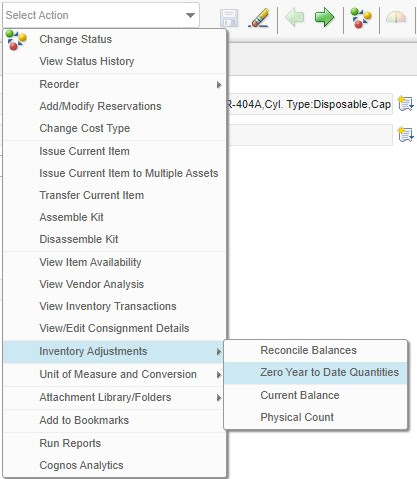
This Year to Date (YTD) attribute in Inventory application shows us the count of issuance of the item during the whole year. 

It's one of the task of Store Manager; to reset it and roll the counter one year down. 

Maximo gives us 3 counters, Last year , 2 Years ago and 3 years ago as depicts in the right image.


There is an option is the Select Action menu as below:


Thursday, 3 June 2021

Implicit Variable of Domain Synonym List in Relationship Where Clause - SQL | Maximo

Another way in the SQL condition while creating Relationships in Maximo:


get all synonym values of CLOSE,CAN from work order status


 :&synonymlist&_wostatus[CLOSE,CAN]

is equivalent to

SELECT VALUE FROM SYNONYMDOMAIN WHERE DOMAINID = 'WOSTATUS' AND MAXVALUE IN ( 'APPR')


Usage:

Let's make a relationship and enter this condition within a where clause;


Other useful bind variables are here:

&USERNAME&, &APPNAME& and other special bind variables you can use (ibm.com)

Sunday, 23 May 2021

SurveyMonkey Integration – Call External API from Automation Script | Maximo

In the continuation of my last post "integration with Survey Monkey through Zapier". 

I had another requirement to implement a customization to directly call the external API of Survey Monkey from Maximo.

Below are the 2 steps procedure, first is the list of APIs we are going to call in a sequence from Maximo Automation Script, and then the detail code I used.

Prerequisites: 

  • Survey Moneky Account, Token
  • Design Survey and enable "Embed First Question" in the Email
  • Create an Email collector 
  • Get the id of the newly created Email Collector


A. Three APIs we are going to call for this project from Automation Script: 

  1. https://api.surveymonkey.net/v3/collectors/{{COLLECTOR_ID}}/messages
    1. {
        "type": "invite",
        "subject": "Survey for the Ticket {{myextrafield}} {{CustomData1}}",
        "is_branding_enabled": true,
        "embed_first_question": true
      }
  2. https://api.surveymonkey.net/v3/collectors/{{COLLECTOR_ID}}/messages/{{MESSAGE_ID}}/recipients
    1. {     "email": "abdulqadeer.el@gmail.com",     "custom_fields": {    "1": "c1"},     "extra_fields": {     "myextrafield": "1234"   }    }
  3. https://api.surveymonkey.net/v3/collectors/{{COLLECTOR_ID}}/messages/{{MESSAGE_ID}}/send
    1. { }

B. Jython code can be implemented on any object, for testing I am using SR object before-save trigger. 

Wednesday, 2 December 2020

Modify Maximo URL's Context Root | Maximo

 Some times we need to change the default context root (/maximo) to something else, for example "/maximoprod"

http://localhost/maximo     ------->>>>        http://localhost/maximoprod

1. login to Websphere (https://maximo76.el.com:9043/ibm/console/) with wasadmin user

2. Applications > Enterprise Applications > MAXIMO > Context Root For Web Modules.

and modify the context root to "maximoprod" instead of "maximo" , as in my example. 


Restart Application server or Ripple start your cluster to login with new URL : 

http://maximo76.el.com/maximoprod


you are done :)

Saturday, 28 November 2020

Copy WF Memo to Status Memo in View History of Status dialog | Maximo

Copy the Memo from the MANUAL INPUT of the workflow dialog into Memo field of CHANGE STATUS in View History Dialog of any application. 

Both Memos are different , one is coming from wftransaction, and the other one is in the xxstatus table. 

We were trying to cross over the memo from Wftrancation to status table's memo. 

here is the solution we developed using automation script in jyton. 
In my example i am using PR object and PRSTATUS table.

1. Make a relationship from WFTRANSACTION to PR
RelationShip Name: PR
Child Object: PR
Where Clause: prid = :ownerid and :ownertable = 'PR'

1. Object Launch Point 
Object : WFTRANSACTION
Events: SAVE, Add, After Save
wftmemo = mbo.getString("memo")
if (wftmemo!=''):
    prset = mbo.getMboSet("pr")
    pr = prset.moveFirst()
    if pr is not None:
        prstatusset = pr.getMboSet("prstatus")
        prstatus = prstatusset.moveLast()
        prstatus.setValue("memo",wftmemo,2L)
        #prstatusset.save()


Sunday, 22 November 2020

Implicit Variables like Current Date and or Time to a Communications Template | Maximo

:DATETIME - to display the current Date and Time

:DATE - to display the current Date

:TIME - to display the current Time

:HOSTNAME - to display the hostname defined in System Properties 

Change Status method using Automation script | Maximo

from psdi.server import MXServer

 mbo.changeStatus("APPR", MXServer.getMXServer().getDate(), "heheh")


Thursday, 22 October 2020

Service Specific to an Application/Object in Maximo - AppService | Maximo

These are wrapped with multiple capabilities as a service to support an Application/object within Maximo. 

for example, a service specifically for asset, another is for workflow, and so on. 

Also, some of the services work globally like Escalations service.

If we look into the log, we can see something like 

BMXAA6348I - The ASSET service is initializing.

BMXAA6348I - The WORKFLOW service is initializing.


So as mentioned above, there are 2 types of AppServices

1. App-related services

  • psdi.app.asset.AssetService
  • psdi.app.item.ItemService
  • psdi.app.pr.PRService
  • psdi.app.inventory.InventoryService
  • and so on.

Thursday, 17 September 2020

Do not Reinstate the PM Workorder if Cancel from Workflow | Maximo

One of the missing features we found is to NOT REINSTATE the work order generated from the PM.

Behavior:

1. Cancel from the Status Change Button:

If the user cancels a work order from the Change Status button, a Dialog box appears something like "do you want to reinstate " with Yes and No buttons. 

(you have the option to choose either Reinstate or Not)

2. Cancel from the Workflow Action

If the Assigned User of workflow wants to CANCEL the record. The system will cancel the workflow and with Reinstate option Yes. 

(No prompt/dialogs appear to ask for reinstating  Yes or No. )


Therefore below is the solution in Jython: 

Get PersonID of the Logged in User in Automation Script | Maximo

There are multiple ways  to get the person id in Automation script, one of the them is as below:

PersonSet = MXServer.getMXServer().getMboSet("MAXUSER", mbo.getUserInfo())

    PersonSet.setWhere("PERSONID=:&PERSONID&")

    vPerson = PersonSet.getMbo(0)

    service.error(user,vPerson.getString("personid"))

    PersonSet.save()


For Person ID: -                 :&PERSONID&

For Username  -                   :&USERNAME&


or we can also use the one of the implicit variable ( USER )fo the logged in user:

PersonSet = MXServer.getMXServer().getMboSet("MAXUSER", mbo.getUserInfo())

    PersonSet.setWhere("userID='" + user + "'");

    vPerson = PersonSet.getMbo(0)

    service.error(user,vPerson.getString("personid"))

    PersonSet.save()

Sunday, 17 May 2020

mboSet() in Automation Script, getMboSet() vs getThisMboSet() | Maximo

Most of the time automation script creates an implicit variable "mbo". It represents the current record on which the script was triggered. 

let say we open one workorder: 123. in this case, our mbo is 123. 

what If we want to get the MboSet of this mbo. (like we are going back to the list tab :)
here you go. 

mboSet = mbo.getThisMboSet()

2. Most common way to call an mboset is using famous method , which is
mbo.getMboSet("PR")
where PR is the Relation Name already exists in database configuration from this record. 

3. or we can create at run time a new relation with WhereClause, like this:
 woSet = mbo.getMboSet("woSet ", "WORKORDER", "status = 'APPR' and siteid = 'BEDFORD'")

4th and last is get any MBO from the system, which is the least recommended if the things can be handled with first 3 methods.  
If the "mbo" implicit variable is not exists then you need this:
woSet = MXServer.getMXServer().getMboSet("WORKORDER", userInfo)


Friday, 1 May 2020

Refresh a Record by clicking the Button | Maximo

Sometimes data is  updated and we need to navigate back to the list view and re-open the record to see the updates,
or we copy the record id into the search field and hit search button to refresh. 

But with this trick, we can add Push Button we can refresh the record.

1. Refresh the Record, For Instance PR application

Drag Push button control and set these properties as below:

Label: Refresh PR 
Event: reset 
Target id: results_showlist


2. Refresh Child Record, For Instance PR Line Tab 

Tuesday, 7 April 2020

Add Custom Modules to Go To Menu | Maximo

1. get max(MAXMODULESID) and add 20

select max(MAXMODULESID)+20 from maxmodules ; --42+20


now INSERT in MAXMODULES using the value from step 1.

Insert into MAXMODULES ( MODULE, DESCRIPTION, MAXMODULESID) values ('QMS', 'Quality Management System', 62)


2. get max(MAXMENUID) and add 200

select max(MAXMENUID)+200 from maxmenu; --18779+200


3. get max(POSITION) and add 1000

select max(POSITION)+1000 from maxmenu; --96033+1000


4. now INSERT in MAXMENU using the values from step 2 and 3.

Insert into MAXMENU (MENUTYPE, MODULEAPP, POSITION, SUBPOSITION, ELEMENTTYPE, KEYVALUE, HEADERDESCRIPTION, VISIBLE, IMAGE, MAXMENUID)

values ('MODULE', 'QMS', '97033', 0,'MODULE', 'QMS', 'Quality Management System', 1,'atb_bookmark.gif', 18979)


Monday, 2 March 2020

how to use wildcard characters and Operators in Maximo

Maximo Wildcard Usage Examples.


* or %  
Substitutes for a string of characters
123* or 123% find records that start with 123, such as 123, 12345, and 123ABC.


? or _
Substitutes for a single character
123? or 123_ find any four-character records that start with 123, such as 1234, 1230, 123g.

When searching in a date field you can precede the date with a > (greater than), < (less than), or =

This only works when there is one window to search for a date (not two)  

~null~   searches for records that do not have an entry for the particular field.

!=~null~   searches for records that have an entry for the particular field.


Operator action Use

ampersand (&)  And

Find records that contain at least one occurrence of all of your query terms. The operator must be placed between two query terms.

hyphen (-)

Minus

Find records that contain one query term, but you want the presence of your second query term to cause the document to be ranked lower in the result set. The operator must be placed between two query terms.

pipe (|)

Or

Find records that contain at least one occurrence of any of your query terms. The operator must be placed between two query terms.

semicolon (;)

End of SQL command line

Indicate the end of a SQL command line.

tilde (~)

Not

Find records that contain one query term and not another. The operator must be placed between two query terms.


equals (=)

Exact match

Find records that are an exact match to your query. For example, filtering records with a status of "APPR" also returns records that have a status of "WAPPR" unless you type "=APPR" in the status field.

Not equals (!=)

Not match

Find records that are not a match to your query. For example, filtering records with a status of "!=WAPPR" finds records that do not have a status of “WAPPR”.